Add Your Credential to LinkedIn
Follow these steps to showcase your CogniPilot credential on your LinkedIn profile.
Before You Begin
Make sure you have received your CogniPilot credential and can access your credential page. The "Add to LinkedIn" button on your credential page will pre-fill most of the information for you.
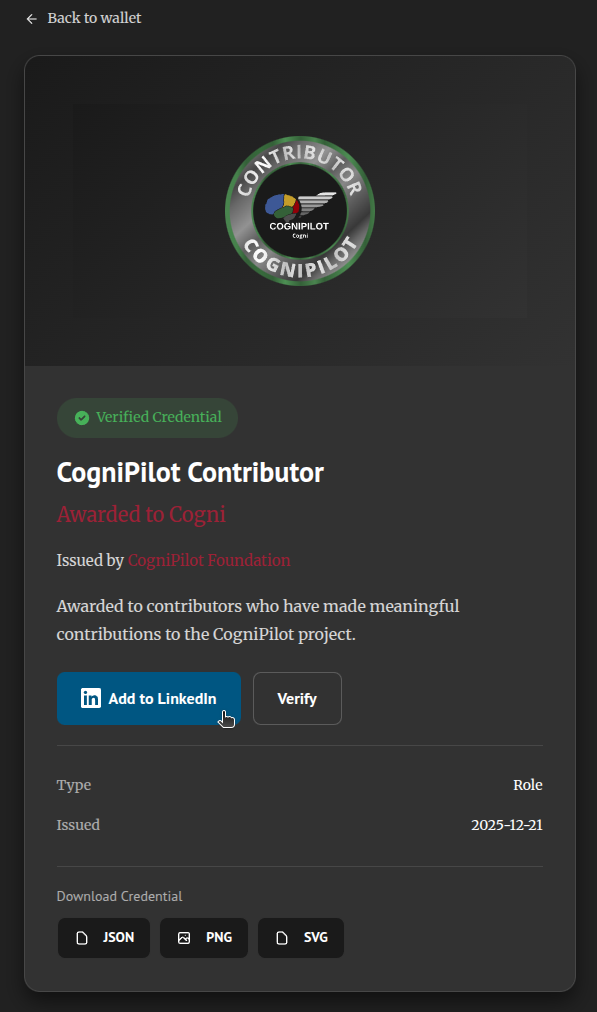
1 Click "Add to LinkedIn" on Your Credential Page
Navigate to your credential page and click the "Add to LinkedIn" button. This will open LinkedIn's "Add license or certification" form with your credential details pre-filled.
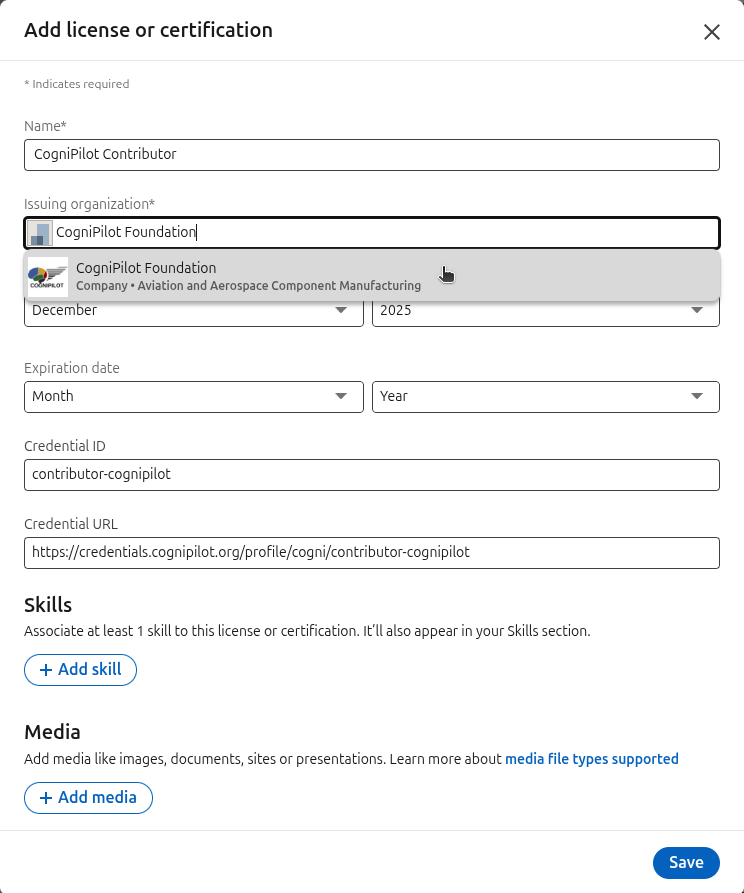
2 Select CogniPilot Foundation as Issuing Organization
In the "Issuing organization" field, start typing "CogniPilot Foundation" and select it from the dropdown. This links your credential to the official CogniPilot Foundation LinkedIn page.
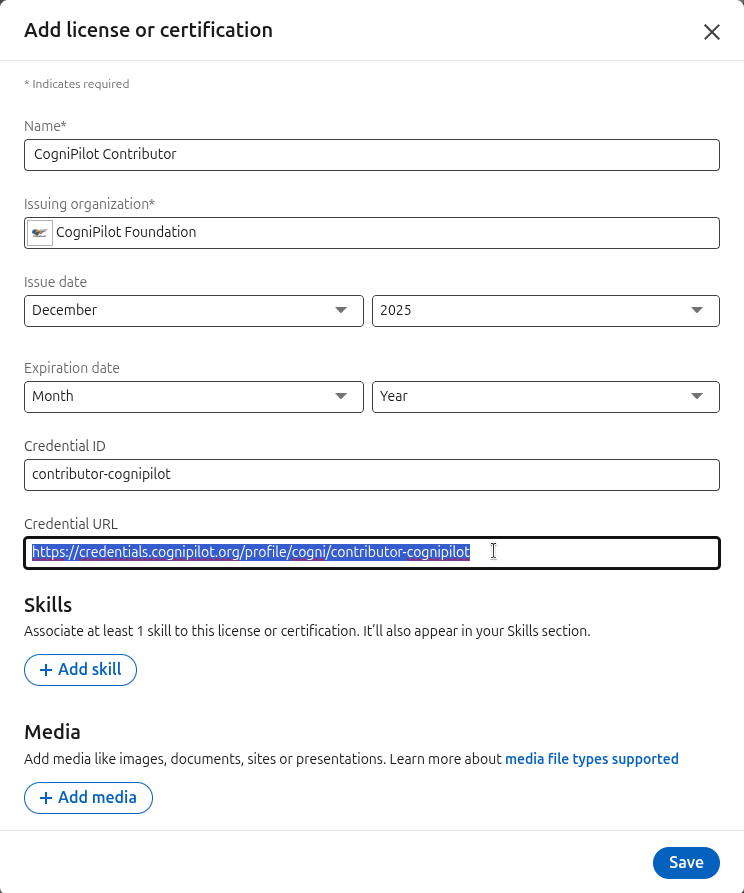
3 Copy the Credential URL
Select and copy the Credential URL from the form. You'll need this to add a media link in the next steps so others can view and verify your credential.
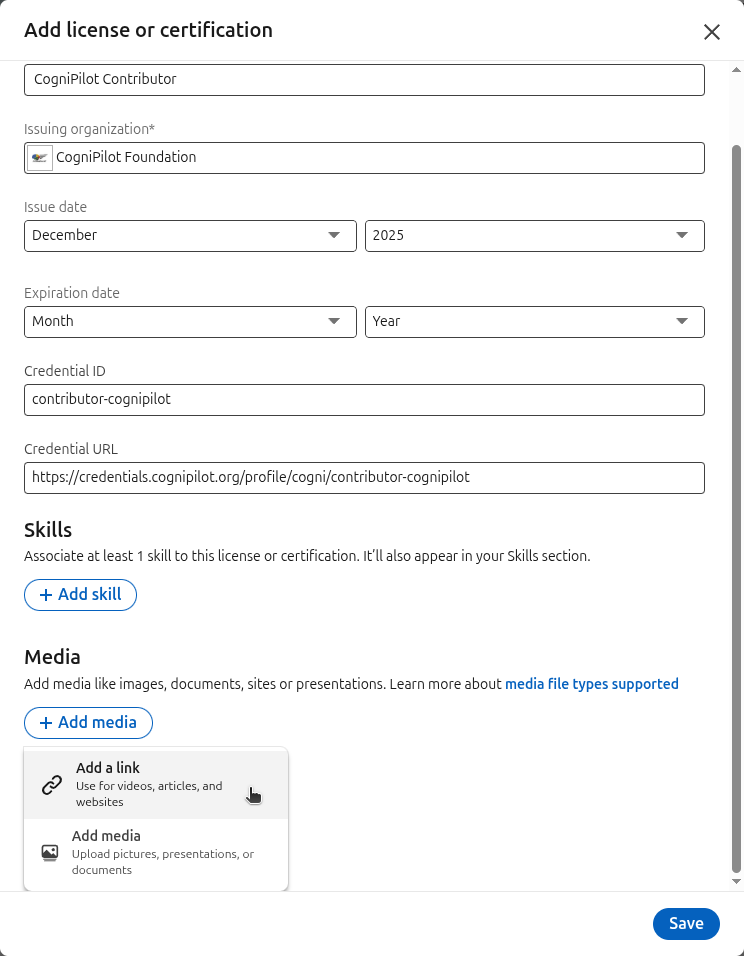
4 Click "Add media" and Select "Add a link"
Scroll down to the Media section and click "+ Add media". From the dropdown, select "Add a link" to attach your credential page as viewable media.
5 Paste the Credential URL and Click Add
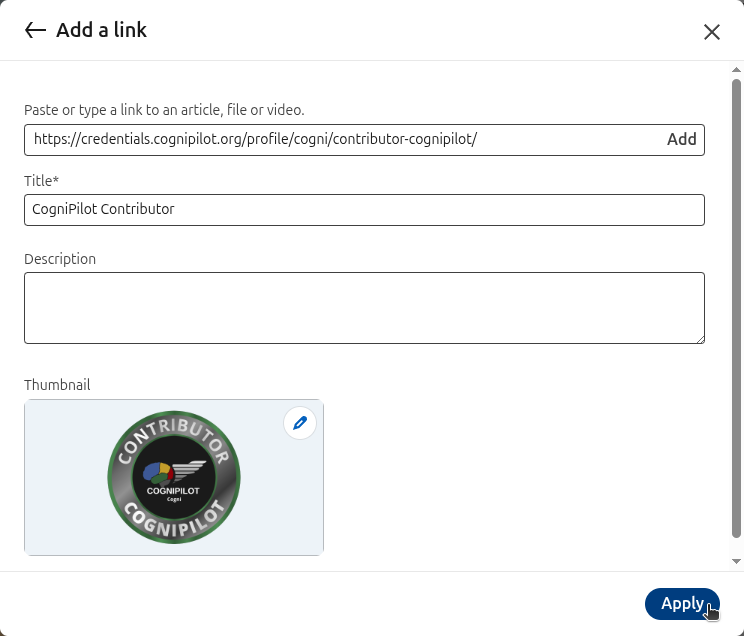
Paste the credential URL you copied earlier into the link field and click "Add". LinkedIn will fetch the page preview automatically.

6 Click Apply to Add the Media
LinkedIn will display a preview with the credential title and badge image. Click "Apply" to attach this media to your certification entry.
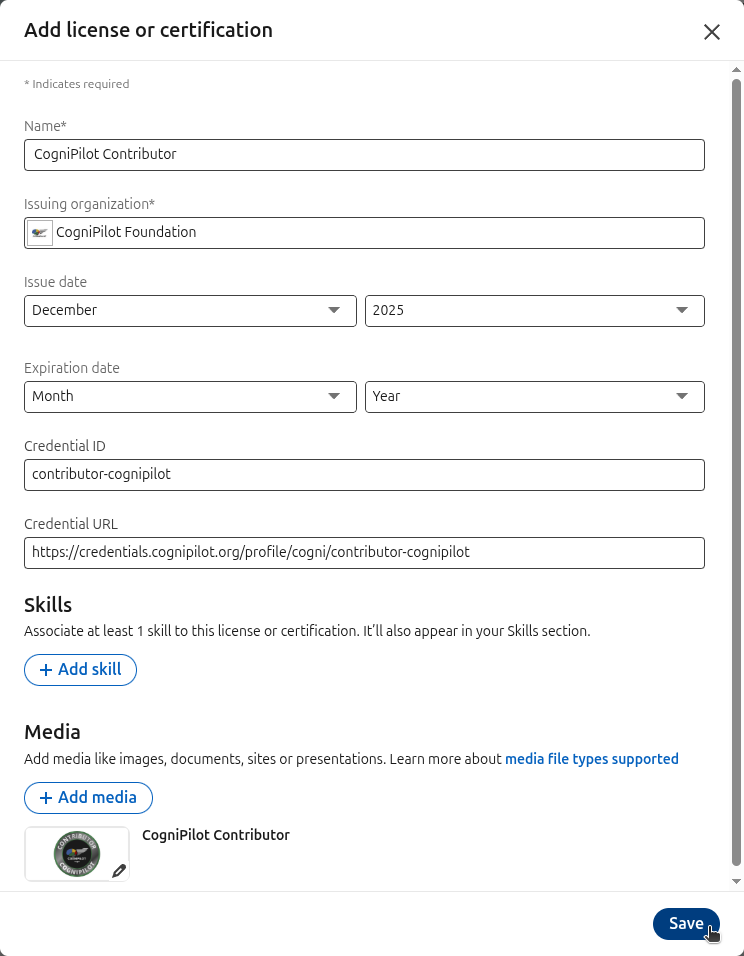
7 Confirm Details and Click Save
Review that the issuing organization shows "CogniPilot Foundation" and the media attachment appears at the bottom. When everything looks correct, click "Save".
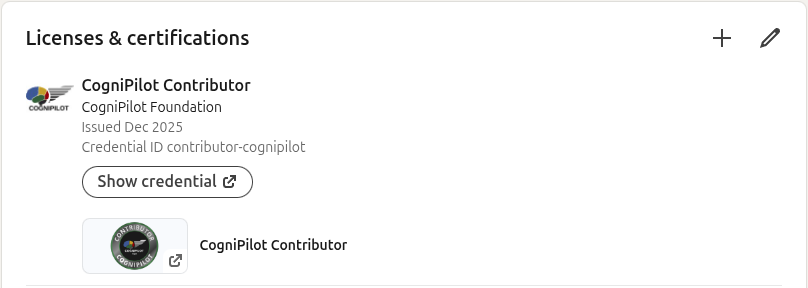
8 Done! Verify on Your Profile
Your credential now appears in the "Licenses & certifications" section of your LinkedIn profile. Others can click "Show credential" to view and verify your badge.
Need help? Have questions?
Open an Issue on GitHub